

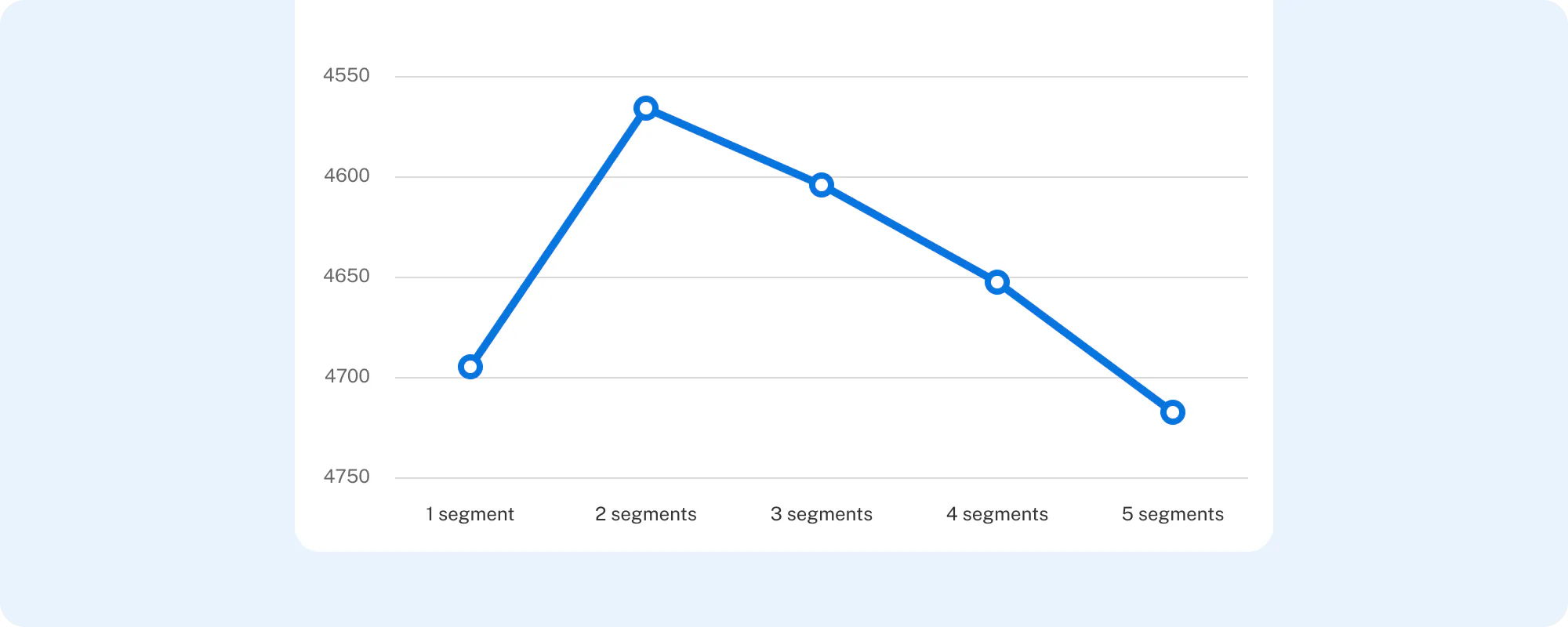
Segment finder helps you uncover meaningful subgroups in your MaxDiff and CBC data, without needing to specify segment rules manually. Using automated clustering, it quickly identifies patterns in how people respond to your questions and groups similar respondents together. You can explore these segments visually, review key drivers that distinguish them, and export them for further analysis. It's a fast, intuitive way to spot trends, tailor follow-up research, or inform strategic decisions with deeper audience insights.
To run Segment finder after data collection:
Navigate to the Analysis section of Discover.
Select the Segment finder item under the exercise (CBC or MaxDiff) you'd like to analyze.
In the right panel, set the Maximum number of segments.
Click the Run button to begin analysis.
Once Segment finder finishes running, each solution will appear in its own tab at the top of the screen.
At this point, each of the solutions is also available as an option for segmentation in the other areas of exercise analysis.
Our new Segment finder help article dives deeper into how the feature works and what reports are available.