


A key way to change the look and feel of your survey is font choice. The right font paired with strategically chosen colors can easily transform your survey from feeling plain and boring to fun, bold, whimsical, classy, etc.
For example, check out this fun holiday themed survey we put together this year (2026). The font and color pairing does well to bring in the feeling and essence of the holiday season.
Luckily, importing a custom font is fairly easily using custom JavaScript and CSS.
First find a suitable font from https://fonts.google.com/. Add it to your "bag" by opening the font page then clicking the "Get font" button.
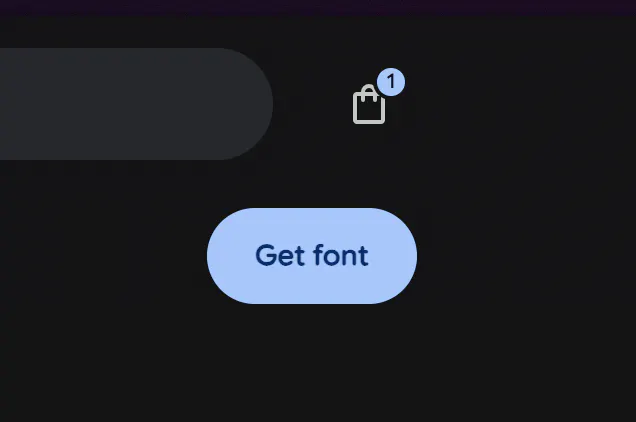
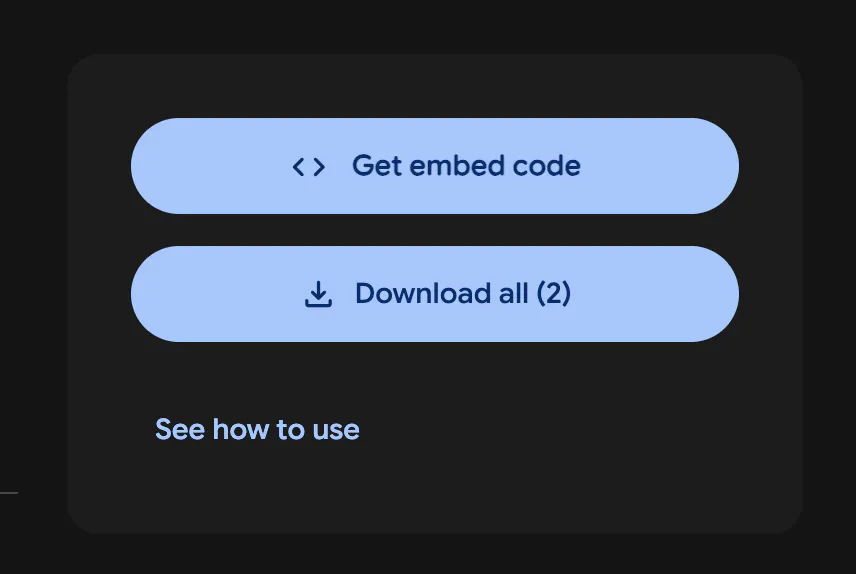
Open your bag in the upper right-hand corner and then select "Get embed code" at the top:
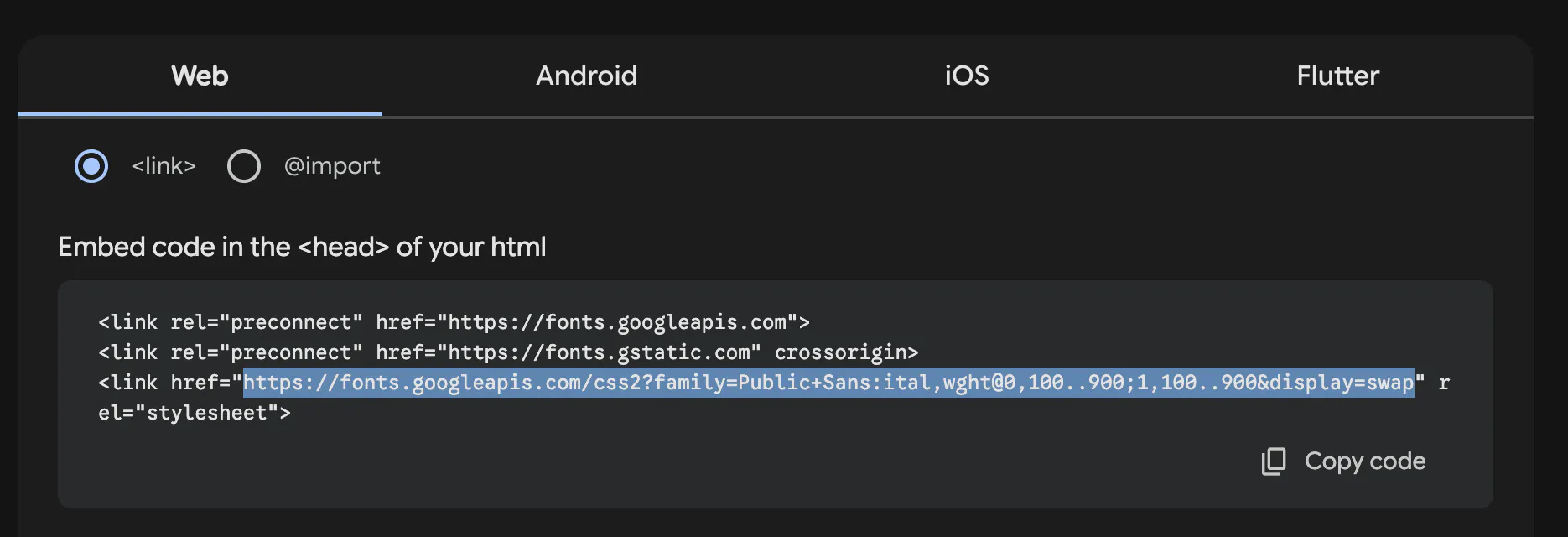
On the embedded code page, look for the "Embed code in the <head> of your html" section and locate the <link> with 'rel="stylesheet"' and keep the URL inside the quotes handy. We'll need this in a moment.
Open Discover now and navigate to the Settings > Custom JavaScript area. In the code editor, paste the following code
(() => {
  // Import font
  const element = document.createElement('link');
  element.setAttribute('rel', 'stylesheet');
  element.setAttribute('type', 'text/css');
  element.setAttribute('href', 'https://fonts.googleapis.com/css2?family=Noto+Serif:[email protected]&display=swap'); /* <-- replace link here */
  document.head.appendChild(element);
  // End Import Font
})();
This code creates the HTML <link> element necessary to load your chosen font and injects it into the survey so that the font is available to be applied using CSS.
Note the fonts.googleapis.com link that I've called out with the "replace link here" comment. This is where you'll need to copy your font link from Google fonts in the previous step and paste it to replace the one in the single quotes.
At this point we're nearly done, you just need to apply the font to the elements where you'd like to use it in your survey.
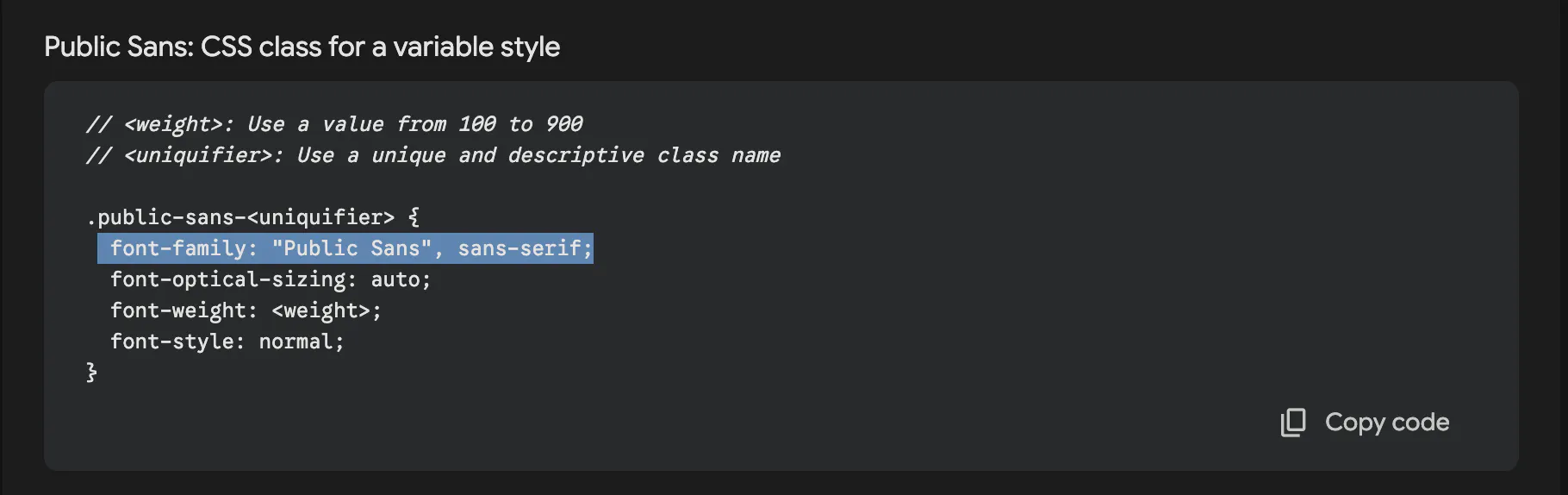
Let's go back to the Google fonts embedded code page. Near where you found the embed code link there should be another section called "[Font name]: CSS class for a variable style". In this CSS code you need to look for the "font-family" style declaration. This line is what you need to apply the font to the survey elements you'd like.
Now, back in Discover, navigate to the Styles > Custom CSS area and paste the following CSS into the code editor:
/* Applies custom font to all text elements */
body,
.large-body,
.medium-body,
.small-body,
.small-heading,
survey-container.survey-header,
button.primary,
button.secondary,
survey-ranking ssi-select .current-value-display{
  font-family: 'Public Sans', serif; /* <-- replace font-family here */
}
Now replace the font-family line that I've called out with a comment with the font-family you found in Google fonts.
This CSS code should select all text elements in the survey and apply the font you've chosen. (Do be sure to do your own testing to make sure a text element isn't missed)
If you'd like to be more precise and granular with how you use the custom fonts open up a test survey with browser dev tools open and inspect the HTML elements for the right element names and classes to reference. You may also find that our help documentation for custom CSS to be useful here.
And that's it! You should now see your custom fonts load in your survey.
I hope you found this instruction helpful! Happy surveying!
